By default, an email is sent in 5 seconds after you click Send . However, if you click

near the Send button, you will open a dropdown with the other options  :
:
- Send now: email is sent immediately
- Send with delay: email is sent with a delay, you can set the date and time
- Save to Drafts: email is saved to Drafts
- Send to Teamchat: email is sent to the TeamChat room entered in the Bcc to TeamChat
 field. In case the room is not indicated, you can choose it in a pop-up window.
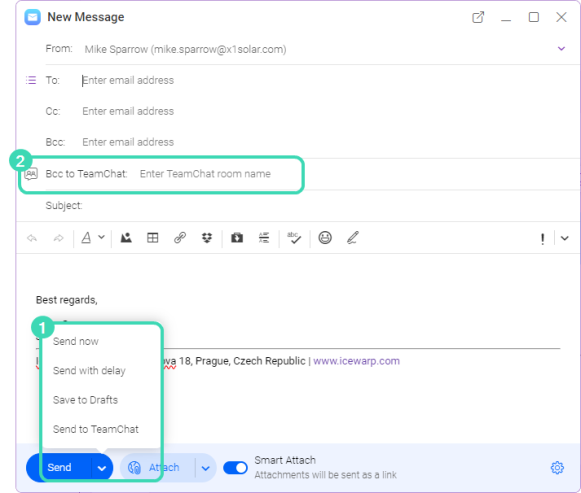
Figure. Send Options.
Send with delay
You can schedule the exact day and time when the message will be sent to recipient.
Click Send with delay to set the date and time of sending. The message will be held in the Sent folder until the delivery time.
The delayed message can be still edited, sent immediately or revoked.
Find the message in the Sent folder and click the line with the delay time information  to open the Delivery report window (right-click the message and select Delivery report).
In the Delivery report window, click:
- Send now to send the message immediately
- Edit to continue editing
- Revoke to delete the message. Please note, once you delete the message, it will disappear. The revoked messages are not moved to Trash.
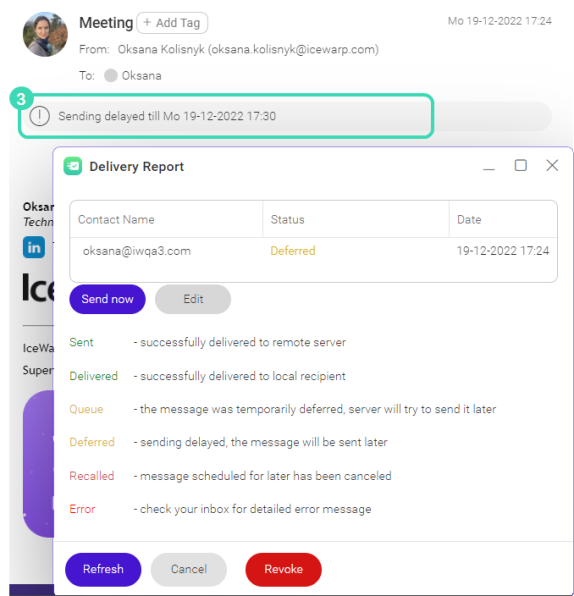
Figure. Delivery report.
Send to Teamchat
You can share your message with members of a TeamChat room. Select a message and click Forward , fill in the Bcc to TeamChat field and click Send to TeamChat button. The message will be sent to the TeamChat room.
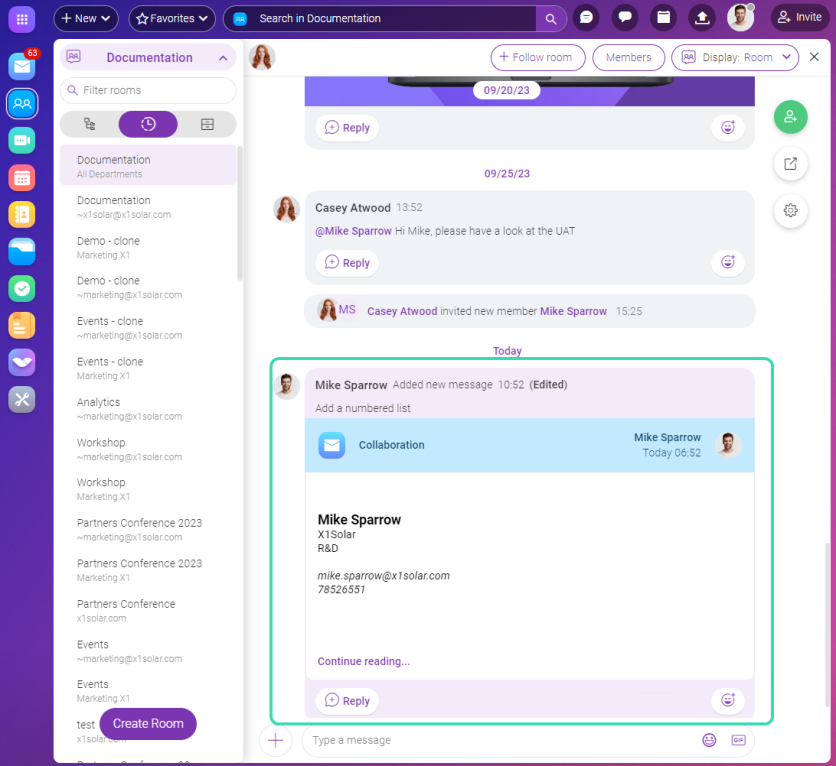
Figure. Sending message to Teamchat.
NOTE: Send to TeamChat option is unavailable in case you did not fill the Bcc to TeamChat field.
You can also copy the message to TeamChat: right-click the message and select Copy to TeamChat (see How to copy your email to a TeamChat room).
Undo Message
After clicking Send , you have 5 seconds to decide whether you want to stop sending the message. To stop sending, click Undo in the notification.
Skicka meddelande igen
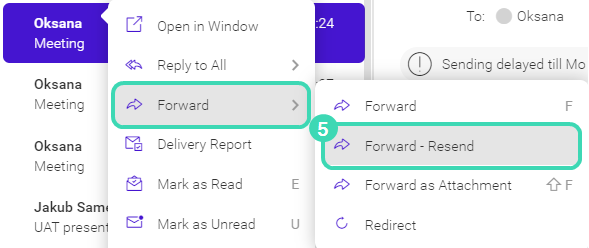
Figure. Resending a message.
To save time when resending already sent or received message, you can click on any received or sent message in your mailbox and select Forward > Resend  from the context menu.