You can access the context menu ☰ in Folder tree. It offers a list of actions to facilitate your work with emails.
To open the context menu, click ☰ or right-click a folder in Folder tree.
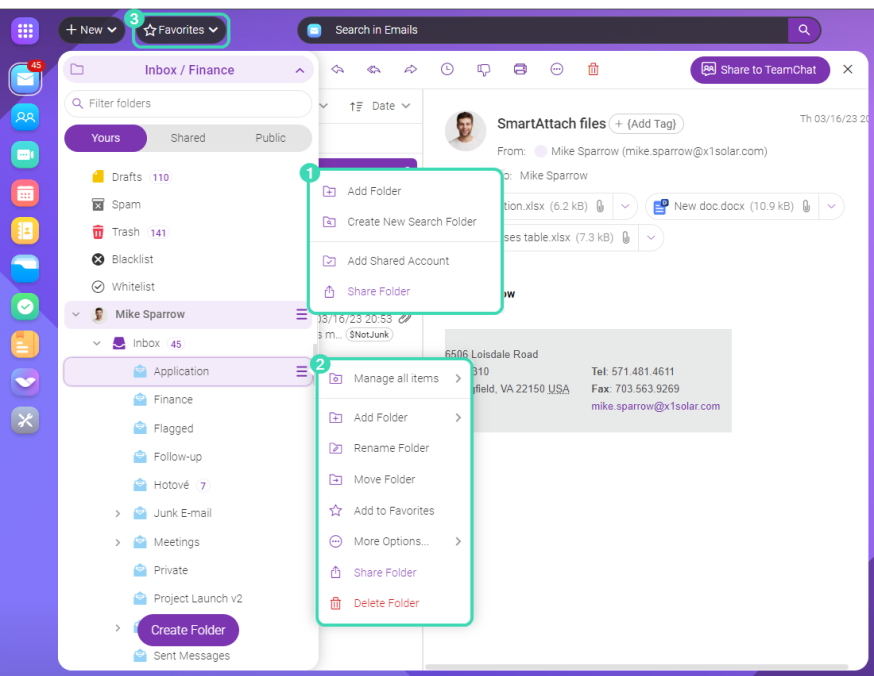
Figure. Context menu.
In the context menu of the account, you can:
 Add Folder
 Create a new Search Folder
 Add Shared Account
 Share Folder
In the context menu of a folder, you can:
 Manage all items (in Mail): mark email as read, copy or move to folder, empty folder
- Add Folder: click to create a subfolder
 Rename Folder: type a new name and press Enter.
 Move Folder: click and select a new folder, the present folder will become its subfolder
 Add to Favorites: click to add a folder to the list of favorite items
  for quick access
 More Options: click to select either to export or to synchronize a folder
- Share Folder: click and enter the email address of the account you want to share the folder with
 Delete Folder: click to permanently delete the folder