Click the plus icon on the left side of message typing area will open a dialog window with options.
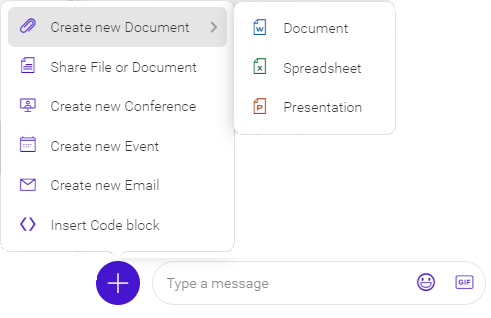
Figure. Options available in TeamChat’s Plus Menu.
- Create new Document: Select which type of file you want to create – Document, Spreadsheet or Presentation.
- Share File or Document: Select which type of file you want to create – Document, Spreadsheet or Presentation.
- Insert Code block: Inserts a block of code with the possibility to either specify the source programming language or letting WebClient to autodetect it.
- Create new Conference: Connect with internal or external contacts through audio/ video calls
- Create new Event: Send meeting invitations to both internal and external contacts and check their availability.
- Create new Email: Since Email has been integrated with TeamChat, you can work with email messages in TeamChat exactly the same as you do in Email.
Sharing URL
To share a URL, paste it into the text field and you will see the preview of the requested web site. Press enter to share the URL. When preview appeares you can delete the link in the text field and type any title instead of the URL.
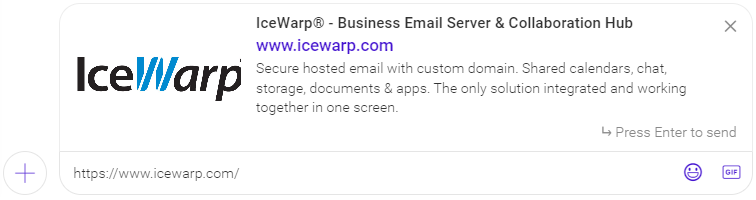
Figure. Link sharing in Teamchat.
Note: In case you are uploading the URL that links to video, video player is displayed. You can play video directly in the chat bubble.
Drag&Drop
Through Drag&Drop feature is possible to upload any file in the conversation area without using Upload. Click and drag the file from the file manager, drop it in the TeamChat window. The file will appear in the text field. You can write a description to the file and change its name. Press Enter and the file will be uploaded to the current room. After longer inactivity, this dialog will close automatically.
Note: When creating, uploading or renaming any document in TeamChat don’t use these characters: < > : / \ | ? * “.