The Accounts tab > My Account page lets you change the password, activate 2-step Authentication and provide a description for your primary email (the one your administrator gave you with IceWarpWebClient).
Within the Private Certificates page, you can manage your certificates.
The Other Accounts page lets you define other email accounts you own so IceWarpWebClientcan download those messages for you as well, keeping all your messages in one place, accessible from anywhere you have Internet access and a compatible browser.
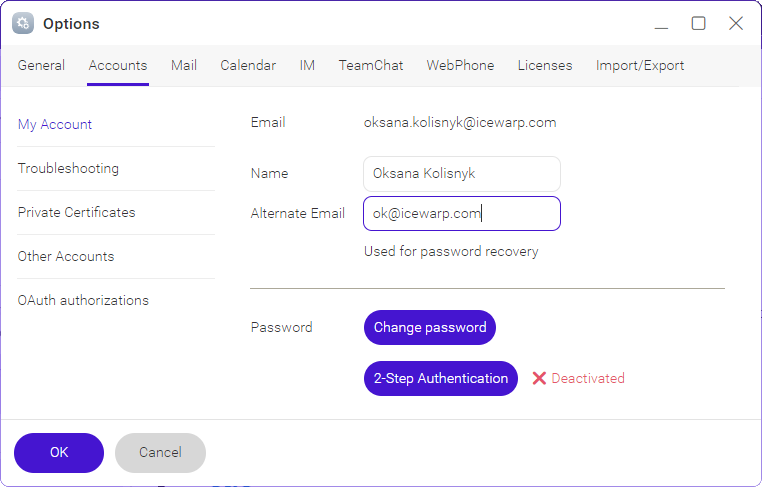
Figure. Accounts tab.
2-step Authentication
2-step Authentication must be enabled on the domain level. Then you will see the Two-Step Authentication button in the Options – Accounts – My Account tab so you will be able to activate this feature and make stronger security for your IceWarp account.

Figure. Two-step authentication disabled.
The red cross next to the Two-Step Authentication button indicates that you were not set up with this feature yet.
Click the Two-Step Authentication button and follow the instructions in How to configure 2-step authentication.

Figure. Two-step authentication enabled.
From now you will use the authenticator to sign in to your WebClient account.