You can share folders with other colleagues for mutual collaboration.
Note: Sharing is possible only between users in the same system.
- To share a folder, go to Inbox folder tree.
- Right-click the folder, choose Share Folder.
- Select users and click the user name to add it to the list.Tip: Use the Address Book icon
 to search for contacts.
 - Set up the rights for each user under the Permissions drop-down menu:
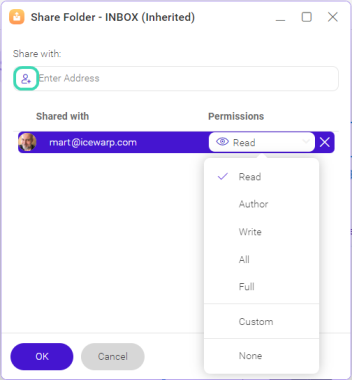
Figure. Folders sharing.
| Permission | Description | |||||
|---|---|---|---|---|---|---|
| Look through folders and read the content | Insert new items /content (not folders) | Edit and create new folders, items /content | Delete folders, items /content | Change folders permissions, share folders | Summary | |
| Read |  | User can only look through the items and read the content of the folder | ||||
| Author | | | User can read the content and insert new items but cannot modify, create or delete content and folders | |||
| Write | | | | User can read the content, insert new items, modify, create or delete content and folders but cannot delete | ||
| All | | | | | User can read the content, insert new items, modify content and folders or create the new, delete items and content | |
| Full | | | | | | User can read the content, insert new items, modify content and folders or create the new, delete items and content, also he can give or change permissions for other users |
| Custom | You can create your own set of permissions | |||||
| None |  | | | | | The folder is shared but the user is not able to read anything, edit or delete |