Tree View shows a hierarchical view of all your TeamChat public rooms and also any private TeamChat rooms you have been invited to or you have created.
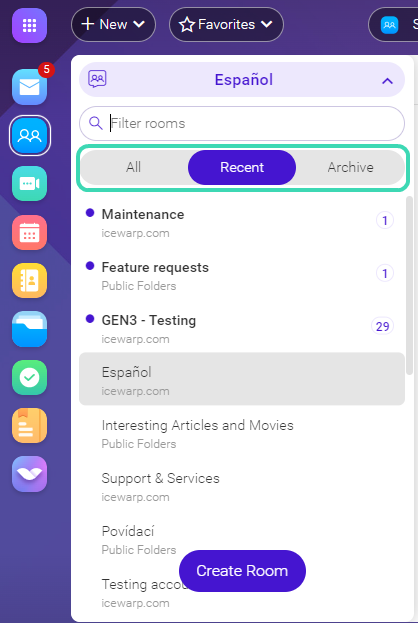
Figure. Copying to TeamChat
- All: Each room where you are participating you will find in the list under All button.
- Recent: When click the Recent button you will be provided by the list of all chat rooms with some recent activity. The number of all chat rooms with recent activity is displayed in the top right corner of the Recent button. This list keeps you informed about activities while you were off.
- Archive: Archived chatrooms.
- Public Room: This is an open room that anyone in your group can join and see the whole conversation.
- Private Room: There can be situations where you need to chat just with a selected group. In this case, you can create a private room and invite specific people to join. Only people who have been invited to a private room can see that room.
Note: When you create a room, you are always prompted to choose whether you want a public or private room.