See the fastest way to create an email:
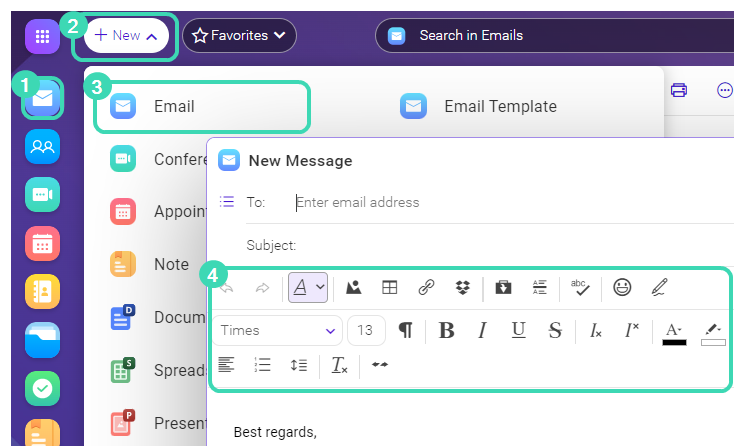
Figure. Composing email.
- To create an email, right-click the Email
 icon
icon  in Main menu.You can also click New
 to see the full menu with all items you can create, and select Email
 .
. - Enter the email of the recipient into the To: field.
Note: Autocomplete will suggest emails of the recipients you already used or that are stored in the shared folder with contacts. Click the email to accept the suggestion or continue entering your own.It is not possible to clear autocomplete suggestions entirely since the service uses emails from your Sent folder, as well as from the Global Address List (GAL) if you have access to a shared folder with contacts.
You can also send a copy of the email to the other recipients. Click to see all fields and enter email addresses of the recipients into the Cc: field. These email addresses will be visible to the others.
If you want to hide recipients, see How to hide recipients.If you don’t remember the email address, you can find it in the Address book, Contact Folder or TeamChat Room – click “To:” and select one of the source from the dropdown.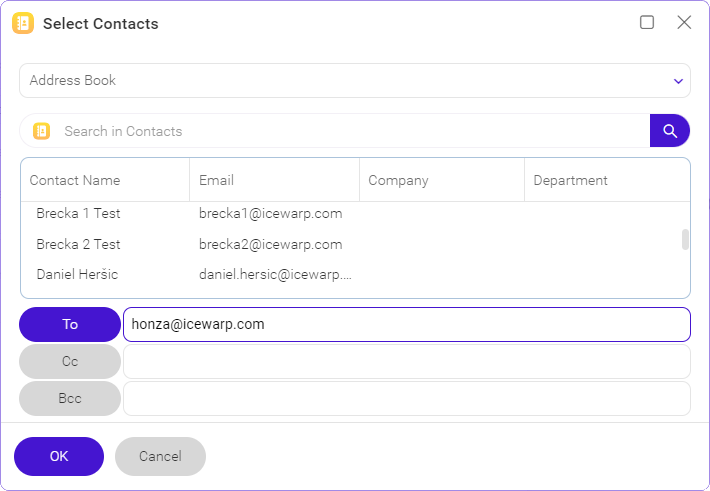 Figure. Contact selection.
 - Enter subject and type text in the email body. Click
 to open more editing tools
  .
.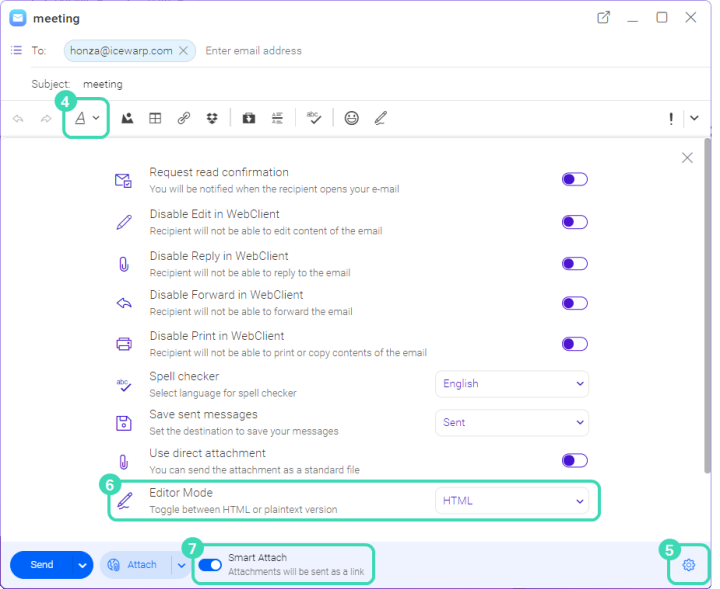 Figure. Options button.
 - To request a read confirmation, use direct attachment, etc. click Options
 .
.
Editor Mode
Use Editor Mode  to format the message body text.
You have the following choices:
- HTML: use this option when you need to have clickable links or track open rate of the email.
- Text: email is sent as plain text so you know that other recipients see what you see. Graphics cannot be used.
- Source: use this option when you need to see message source code.
Note: These tools are enabled only for HTML format.
Smart Attach
With Smart Attach you can send large size attachments as links. The file itself will be stored on your computer and you can manage access to it. The recipient can download the file by the link in the email. In this way you can be sure that the recipient gets your email even if his Inbox doesn’t except large emails. You can also control the file availability. In case you disable Smart Attach  , all files will be sent as direct attachments.