Besides of usual printing of emails, WebClient allows you to print calendar, contacts, events, tasks, notes and journal items using the Print Preview feature. You can combine all mentioned item types.
To print more object types, do the following:
- Double-click the appropriate item to open it. Click the Print button (printer icon) in the lower right-hand corner of the item window.Alternatively, right-click the appropriate item and select
 Print. (Use the CTRL+click or SHIFT+click shortcuts to select more items.)
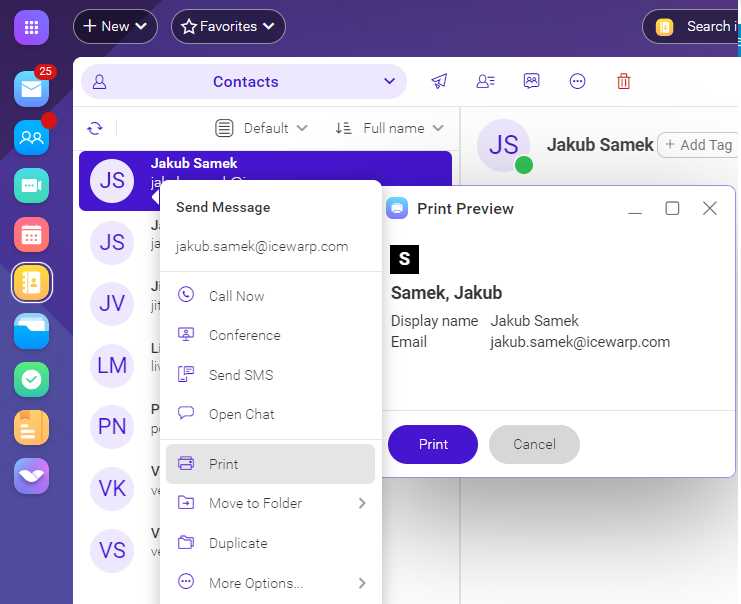 Figure . Print preview.
 - The Print Preview dialog opens. (With more items combined here.)Warning: Do not close the Print Preview dialog.
- Repeat these steps for all items you want to print.
- Click the Print button in the Print Preview dialog. The usual Printdialog opens. (Optionally, change printing preferences.)
- Click OK to print the selected items.
Calendar printing
Go to  Calendar. In the menu bar (See Dashboard), click Print.
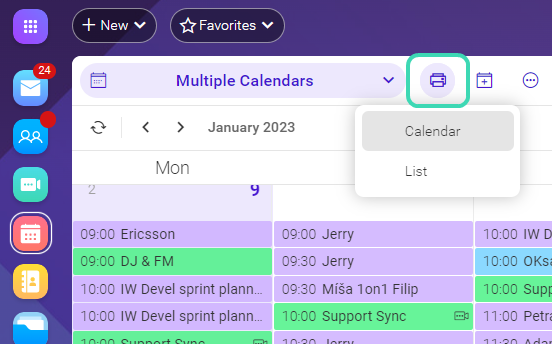
Figure. Print option.
It allows to print the Calendar in 2 ways:
- Calendar print: prints the whole calendar including grid, so the same as you can see on the screen.
- List print: prints list of entries only.
Note: This printing option is possible with Day, Week or Month view only.
Email printing
To print an email body, go to  Mail. In the menu bar (See Dashboard), click Print.
When printing an email message containing attached image, Print option dialog will appear. There you can select whether the attachment should be printed or not.
In case that email message is signed with the certificate then email always includes the information about that on printed document.