- In the list of mails, click the email you want to reply to. In the Menu bar
 , you will see the control icons.
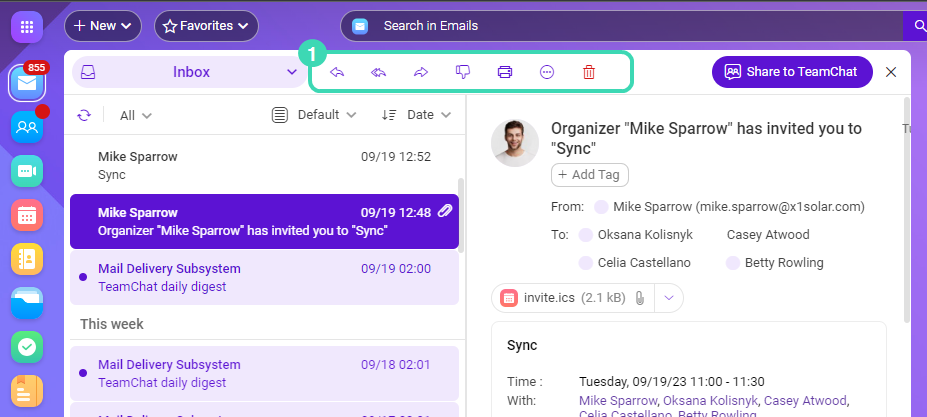
Figure. Replying email.
You can use the icons or shortcuts to perform actions over your emails.
| Icon | Name | Shortcut |
|---|---|---|
 | Reply | ⬆R |
 | Reply to all | ⬆R |
 | Forward | F |
 | Move to blacklist | |
 | ||
 | More | |
 | Delete | Del |
Editing Attachments
The Files & Documents service allows to open and edit email attachments inside the browser before replying. Edited attachments can be immediately sent back to the senders. Click the attachment in the doc, xls, ppt or other format, it will be saved to Files & Documents folder and opened in Files & Documents.
When editing is done, close the attachment and you will get a notification: Do you wish to send your modified file back?. Click OK and continue replying to the email with the edited attachment.
Signing email
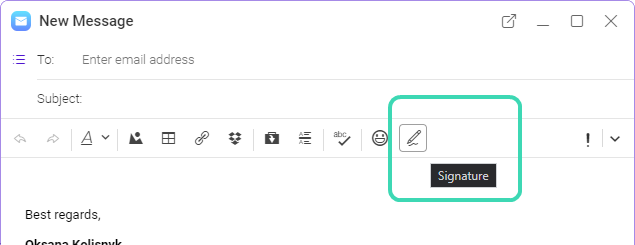
- Click
 in the new message window.
 - Select a signature from the list. To create a signature, see How to setup a signature .